

Documentation Index
Fetch the complete documentation index at: https://lightdash-mintlify-remove-posthog-env-vars-1778770769.mintlify.app/llms.txt
Use this file to discover all available pages before exploring further.
How Lightdash uses timezones
When you apply a relative date filter like “today”, “last 1 completed day”, or “in the current month”, Lightdash needs to determine what “today” means. By default, Lightdash uses UTC for all relative date filter calculations. This means that for a user in California (Pacific Time, UTC-8), “today” rolls over at 4:00 PM local time because that’s when midnight UTC occurs. This applies to all relative date filters - “yesterday”, “in the current week”, “last 7 completed days”, etc. Absolute date filters (e.g., “equals 2026-01-15” or “is between 2026-01-01 and 2026-01-31”) encode exact moments, so timezone settings don’t reinterpret saved filter values. The datetime picker itself, however, can render and interpret values in the project timezone instead of the browser’s - see Date filter inputs in project timezone.What happens under the hood
When a relative date filter is applied, Lightdash:- Gets the current time in UTC (or the configured timezone - see Timezone settings)
- Calculates the start and end of the requested period (e.g., start of yesterday, end of yesterday)
- Converts those boundaries to UTC timestamps
- Generates a SQL
WHEREclause using those boundaries
Timezone settings in Lightdash
Lightdash has two separate timezone settings that solve different problems at different layers:| Setting | Acts on | Question it answers | Where configured |
|---|---|---|---|
| Project query timezone | How Lightdash interprets your data | ”What timezone should my users see data in?” | Project settings → Timezone |
| Data timezone | How the warehouse reads timestamps | ”What timezone are my timestamps without timezone metadata (NTZ) stored in?” | Warehouse connection → Advanced settings |
Experimental: Several features on this page are currently in the Experimental phase. Contact support to enable them for your organization - each section below is marked accordingly. Without them, the project query timezone only adjusts relative date filter boundaries; everything else renders the raw warehouse value.
How the project query timezone is resolved
Lightdash picks the active project query timezone using the hierarchy below (highest priority wins):- Per-chart timezone - set on an individual chart in the Explore view
- Project query timezone - set by an admin in project settings
LIGHTDASH_QUERY_TIMEZONEenvironment variable - server-wide fallback- UTC - default if nothing else is configured
Per-chart timezone picker
Experimental: The per-chart timezone picker is currently in the Experimental phase. Contact support to enable it for your organization.
Project query timezone (UI setting)
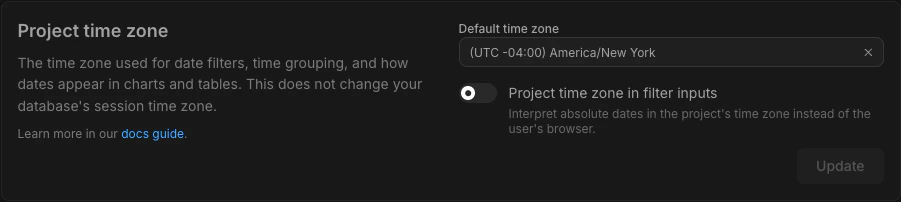
Organization and project admins can set a default query timezone for the project in Settings > Project Settings.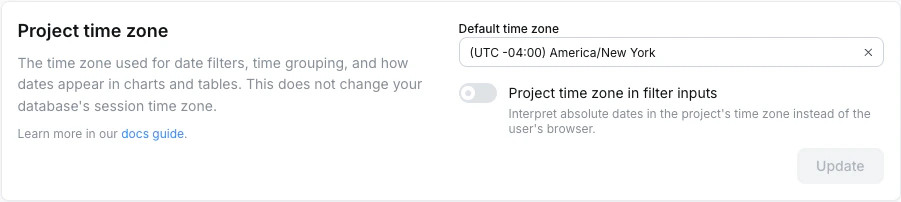
- Relative date filter boundaries - what “today”, “yesterday”, “in the current month” mean
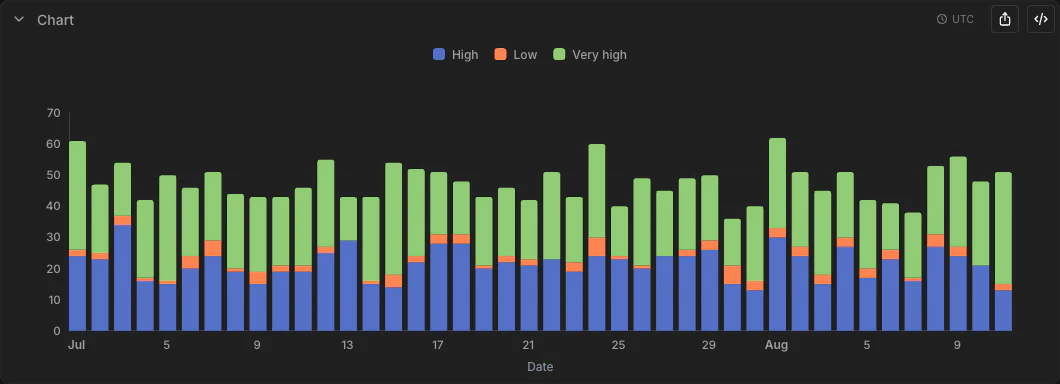
- Display - table cells, chart axes, tooltips, and CSV/Excel/Google Sheets exports render timestamps in the project query timezone. A badge in the Explore view (when viewing or editing a saved chart) shows which timezone from the hierarchy is currently active.
DATE_TRUNCgrouping - day, week, month, quarter, and year buckets align to the project query timezone calendar.- Calendar extracts - dimensions like “day of week”, “month number”, and “hour of day” are computed in the project query timezone, so they line up with their
DATE_TRUNCsiblings on the same row. - Per-dimension opt-out - individual dimensions can keep their raw warehouse value with
convert_timezone: false. See Per-dimension timezone opt-out below. - Date filter inputs - the datetime picker in absolute date filters can be set to display and interpret values in the project query timezone, so the same typed value resolves to the same moment for every user regardless of their browser timezone. See Date filter inputs in project timezone below.
Truncated intervals and extracts built on a
date-typed dimension (e.g. order_date_month where order_date is type: date) ignore the timezone shift - a date has no time component, so it always renders as the calendar date it represents.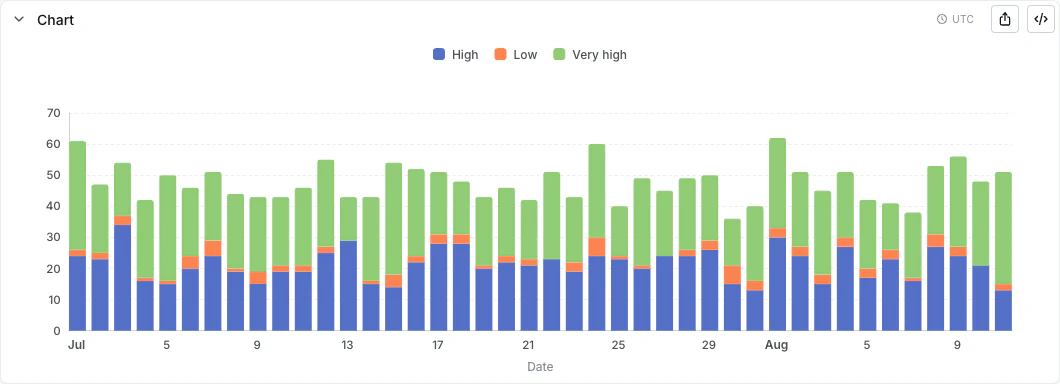
Date filter inputs in project timezone
Experimental: Date filter inputs in the project query timezone are currently in the Experimental phase. Contact support to enable, and set a project query timezone first - the toggle is disabled until one is set.
2026-03-15 00:00) submit different UTC instants, so a shared dashboard filter can return different rows depending on where the viewer is.
Project admins can flip this with the Use project time zone in date filter inputs toggle on the project timezone settings page. When enabled:
- The picker displays existing filter values in the project query timezone, and interprets newly entered values in that zone as well.
- A subtext under the picker shows the equivalent local-time value, and a side label shows the active timezone.
- Saved filter values aren’t rewritten - they continue to encode the same UTC instant, just rendered in a different zone. A filter previously shown as “March 15 00:00” (EET) would now display as “March 14 22:00” if the project query timezone is UTC.


LIGHTDASH_QUERY_TIMEZONE environment variable
LIGHTDASH_QUERY_TIMEZONE sets a server-wide default timezone for every user and project on the instance. It controls the same behaviors as the UI setting - relative date filter boundaries unconditionally, plus display, grouping, and extracts when Experimental support is enabled - and is overridden by both the per-chart timezone and the UI setting.
- Self-hosted: Set this environment variable directly on your instance.
- Lightdash Cloud (Pro/Enterprise): Contact us and we’ll configure it for your instance.
Per-dimension timezone opt-out
Experimental: The
convert_timezone dimension override is currently in the Experimental phase. Contact support to enable it, and set a project query timezone - without both, timestamps already render raw and this setting is a no-op.timestamp dimension follows the project query timezone for display, grouping, and extracts. Some columns - system timestamps, audit logs, pre-converted values - should render in their raw warehouse value instead. Set convert_timezone: false on the dimension to opt that single column out:
- dbt v1.9 and earlier
- dbt v1.10+ and Fusion
- Lightdash YAML
_day, _month, _day_of_week_index, …), so all of them render raw too.
What it changes: display and grouping only - table cells, exports, DATE_TRUNC buckets, and calendar extracts all show the raw warehouse value.
What it doesn’t change: filters. Filters always use the project query timezone so every dimension on a row agrees on whether the row matches the filter. For example, a filter like "between 2026-01-01 and 2026-01-31" cuts at midnight in the project query timezone, even though the column itself renders raw.
Data timezone
Experimental: The data timezone setting is currently in the Experimental phase. Contact support to enable it for your organization. The setting only appears in warehouse advanced settings once enabled, and is not available on BigQuery or Athena.
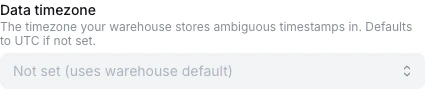
The exact command depends on your warehouse - for example,
SET timezone TO 'America/Chicago' on Postgres or ALTER SESSION SET TIMEZONE = 'America/Chicago' on Snowflake.2024-01-15 18:00:00:
- Without the data timezone set - the warehouse assumes UTC, so the value is read as 6pm UTC.
- With the data timezone set to
America/Chicago- the warehouse reads it as 6pm Chicago, equivalent to midnight UTC the next day.
Scheduled delivery timezone
Project admins can set a default timezone for scheduled deliveries in Project Settings > Syncs & Scheduled Deliveries. Users can also override the timezone per individual delivery.This setting only controls when the scheduled delivery runs. It does not change how queries interpret dates - relative date filters use the query timezone hierarchy described above.
Common timezone issues and workarounds
”Today” or “yesterday” shows unexpected data
This is the most common timezone-related issue. If you’re in a timezone behind UTC, relative date filters like “today” and “last 1 completed day” will roll over before your local midnight. For example, a user in California (UTC-8) filtering for “last 1 completed day” at 3 PM Pacific on Feb 13:- In UTC, it’s already Feb 14
- Lightdash calculates “last 1 completed day” as Feb 13 (UTC)
- But the user expects “yesterday” to be Feb 12 in their local time
- The entire day window is offset by 8 hours
- Set the project query timezone: An admin can set the query timezone in Settings > Project Settings to match your team’s timezone. See Project query timezone.
- Use the per-chart timezone picker: Override the timezone on a specific chart in the Explore view. See Per-chart timezone picker.
-
Set
LIGHTDASH_QUERY_TIMEZONE: Set theLIGHTDASH_QUERY_TIMEZONEenvironment variable to your preferred timezone. Available for self-hosted instances, or contact us for Lightdash Cloud (Pro/Enterprise). -
Cast to date in dbt: If you only need day-level granularity, cast your timestamp column to a
datetype in your dbt model. When a column usestype: date, there’s no time component for Lightdash to apply UTC conversion to -2026-02-12is just2026-02-12regardless of timezone.Then in your Lightdash YAML, settype: datefor this dimension. - Use absolute date filters: If you know the exact dates you want, use absolute filters (e.g., “is between 2026-02-12 and 2026-02-13”) instead of relative ones.
Timestamps are stored in a specific timezone and you don’t want Lightdash to change them
If your timestamps are stored in a local timezone (e.g., US Pacific Time) without timezone metadata, Lightdash still applies UTC-based filter logic by default. This can cause date filter boundaries to not line up with your data. Workarounds:- Set the data timezone on the warehouse connection: If Experimental timezone support is enabled for your organization, set the data timezone on the warehouse connection to match the zone your NTZ timestamps are stored in. Lightdash will issue the appropriate session command so ambiguous NTZ values get interpreted correctly.
- Cast to date in dbt: If you only need day-level granularity, cast to
datetype in your dbt model to remove the time component entirely (see the example above). - Set the project query timezone: Set the query timezone in Settings > Project Settings to match the timezone your data is stored in. See Project query timezone.
- Set
LIGHTDASH_QUERY_TIMEZONE: SetLIGHTDASH_QUERY_TIMEZONEto match the timezone your data is stored in. Available for self-hosted instances, or contact us for Lightdash Cloud (Pro/Enterprise).
Timestamps are stored in UTC but you want to view them in a local timezone
If your data is stored in UTC and Experimental timezone support is enabled for your organization, the simplest path is to set the project query timezone to your preferred zone. Chart axes, tooltips, table cells, and exports will all render in that zone, and time interval dimensions (day, week, month, calendar extracts) will bucket on its calendar boundaries. If you only want to convert a specific column (rather than the whole project), or if Experimental timezone support is not available for you, you can use additional dimensions to create timezone-converted versions of a timestamp:- dbt v1.9 and earlier
- dbt v1.10+
- Lightdash YAML
Scheduled deliveries run at the wrong time
If your scheduled delivery is running at an unexpected time, check both:- The project-level default timezone in Project Settings > Syncs & Scheduled Deliveries
- Any per-delivery timezone override on the individual scheduled delivery
Summary of workarounds
| Scenario | Workaround | Limitation |
|---|---|---|
| ”Today” shows wrong data | Set project query timezone in UI (admin) | Per-project, not per-user |
| Use the per-chart timezone picker | Applies to one chart only | |
Set LIGHTDASH_QUERY_TIMEZONE env var | Server-wide, not per-user | |
Cast to date type in dbt | Loses intraday granularity | |
| Timestamps stored in a local timezone without timezone metadata (NTZ) | Set the data timezone on the warehouse connection | Experimental; not available on BigQuery or Athena |
| Set the project query timezone to match | Per-project, not per-user | |
Set LIGHTDASH_QUERY_TIMEZONE to match | Server-wide, not per-user | |
Cast to date type in dbt | Loses intraday granularity | |
| Want to display data in a different timezone | Set the project query timezone | Applies to the whole project |
Use additional dimensions with convert_timezone() plus convert_timezone: false | Display only - doesn’t fix filter boundaries | |
| Single column should keep raw warehouse value | Set convert_timezone: false on the dimension | Filters still cut at project query timezone midnights |
| Filter values differ across users in different browser timezones | Enable “Use project time zone in date filter inputs” | Experimental; requires a project query timezone |
| Scheduled delivery runs at wrong time | Check project and per-delivery timezone settings | Only affects delivery timing, not query results |